I had several papers to write last night and found myself looking for excuses not to write them. I eventually ended up reflecting on how I felt about writing documentation and to be honest, it isn't something I enjoy. In fact, the two things I hate the most about writing applications are: 1) writing documentation, and 2) writing configuration dialogs, but the second issue is out of the scope of this entry. ;) I suppose my objections to writing documentation stem from my opinion that they waste my time. I could be better off doing something more productive like writing new code (or perhaps playing sudoku :D). A program should be self-explanatory to the point that a user can understand what to do without having to read documentation. Nevertheless, I never really exerted effort in writing documentation so I decided I'd give it a try. (Please spare me the flames in case I do poorly. You have been warned.)One area that could use improvements in documentation is configuring panels in Plasma. Sebas did a good job but he only dedicated one paragraph to it in the documentation and it didn't have any pretty pictures. Most people react to visuals more so I decided to supplement the documentation.___________________________
Configuring the Panel Figure 1
 The Default Panel
Similar to the panel layout in previous KDE versions, the default panel configuration consists of: 1) an application launcher button, 2) a device notifier button, 3) a pager, 4) the task manager, 5) the system tray, and 6) the system clock. By default, the panel takes up the entire width of your screen.
The application launcher defaults to the Kickoff menu style. If you prefer a traditional hierarchical menu, right click on the application launcher and select "Switch to Classic Menu Style". (Figure 2)
 Figure 2
 Switch to traditional launch menu
The panel may be configured by clicking on the plasma logo, (commonly referred to as the "cashew") at the right-most end of the panel. If the cashew is not visible, right click anywhere on the panel or desktop and select "Unlock Widgets". Alternatively, you can unlock the widgets by pressing Ctrl-L when there are no active windows.
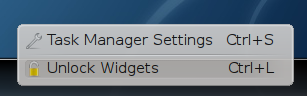 Figure 3
 Unlocking Widgets
Clicking on the plasma logo opens up the panel settings window just above the panel. (Figure 4)
 Figure 4
 Panel Settings Window
This window allows users to configure the position, alignment and size of the panels. The window also allows repositioning of plasmoids within the panel.
Changing Panel Alignment, Position and SizeThe panel may be configured to be anchored to the left side of the screen, the center of the screen, or the right side of the screen depending on your preferences. Simply select the desired alignment by clicking on the appropriate button in the panel settings window. (Figure 5)
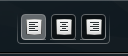
Figure 5 Panel Alignment Buttons
At the bottom of the panel settings window there are slider handles of three different colors. The gray slider handle dictates the offset from the current panel anchor point. For left-aligned panels, moving the gray slider will move the beginning of the panel a fixed distance to the right of the left edge of the screen. For right-aligned panels, the panel will be moved a fixed distance from the right edge of the screen. For center-aligned panels, the position of the gray slider handle will be treated as the center of the panel.
Plasma supports dynamically adjusting panels that grow based on the contents of the panels. The green slider handles specify the minimum panel width. The panel is guaranteed to be at least as wide as specified by these slider handles even as the contents of the panel decrease. On the other hand, the blue slider handles control the maximum width of the panel. The panel size will not grow beyond the points specified by the blue slider handles. Panel growth is dependent on alignment of the panel. Left-aligned panels will only grow towards the right edge of the screen. Similarly, right-aligned panels only grow towards the left edge of the screen. Center-aligned panels grow towards both edges of the screen. Figures 6 and 7 illustrate the growth of the panel after the addition of a widget.
 Figure 6
 Panel Size is at Minimum
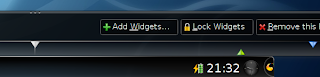
Figure 7 Panel Growth after adding Widget
The panel height can also be changed by dragging the topmost portion of the panel settings window until the desired panel height is reached. Widgets will automatically resize themselves based on this new height. (Figure 8)
 Figure 8
 New Panel height
Additional widgets can be added to the panel to provide more functionality. New widgets can be added by clicking on the Add Widgets button in the panel settings window. Alternatively, right clicking anywhere on the panel and selecting "Add Widgets..." will also open the Add Widgets dialog box. (Figure 9)
 Figure 9
 Add Widgets dialog box
Widgets can be added to the panel by double-clicking on the desired widget or selecting the widget and clicking on "Add Widget". By default, the widget is placed at the right-most end of the panel. (Figure 10)
 Figure 10
 Position of Newly Added Widget
If a specific position is desired, a new widget can instead be positioned by dragging it to its desired location from the Add Widget dialog box.
Changing Widget PositionsIn some cases, you may want to change the position of a widget. To do this, open the panel settings window and hover the mouse over the widget you wish to move. A move emblem will be placed over the center of this widget. (Figure 11)
 Figure 11
 Move Emblem over Widget
Select the widget by clicking on it. This will highlight the background of the widget. (Figure 12)
 Figure 12
 Selection of Widget to Move
Move the mouse over the desired position. Plasma will highlight the new position of the widget. (Figure 13)
 Figure 13
 Selection of New position
Left click on the widget to finalize its new position.

 Figure 1 The Default Panel
 Figure 2 Switch to traditional launch menu
 Figure 3 Unlocking Widgets
 Figure 4 Panel Settings Window
 Figure 6 Panel Size is at Minimum
 Figure 8 New Panel height
 Figure 9 Add Widgets dialog box
 Figure 10 Position of Newly Added Widget
 Figure 11 Move Emblem over Widget
 Figure 13 Selection of New position
 As well as the context menu structure of KPowersave.
 But almost everything is powered by Solid and thus works similarly to solid-shell. However, I fixed the brightness controls to work on my system. KPowersave only set the brightness of the first laptop panel it received, solid-shell sets the brightness of every brightness control. On some systems such as my system that will result in conflicting brightness settings.
